

How to Manage Double-Bookings and Groomer Time Off in Pet Salon Software?
Yes. Pawfora's staff schedule board plans shifts, rest days and time off on one grid. Switch on Booking checks and the roster decides which hours are bookable, in the salon and online. Capacity and a same-pet lock still refuse double-bookings on save. Adding leave does not move existing appointments.
The Short Answer: Put the Week on a Board First
Most shops try to fix double-bookings at the moment of the booking. Two receptionists, one phone, one popular Saturday slot, and somebody ends up calling a customer back with an apology. Pawfora's staff schedule board starts a step earlier. You plan who is working, who is resting and who is away on one grid, then let that plan decide what can be booked.
The board sits inside the same pet shop point of sale software as the calendar, checkout and client records. There is no second roster to keep in sync. A manager builds a week of shifts, marks a rest day, adds a holiday, and the calendar reads the result. Turn on Booking checks and the plan becomes a rule rather than a note on the wall.
Time off needs no switch. A groomer on leave is unavailable everywhere, whether or not the shop uses shifts at all. That one rule is always on, and it is where most of the "somebody booked Anna on her day off" stories end.
Build a Shift Library, Not a Timetable
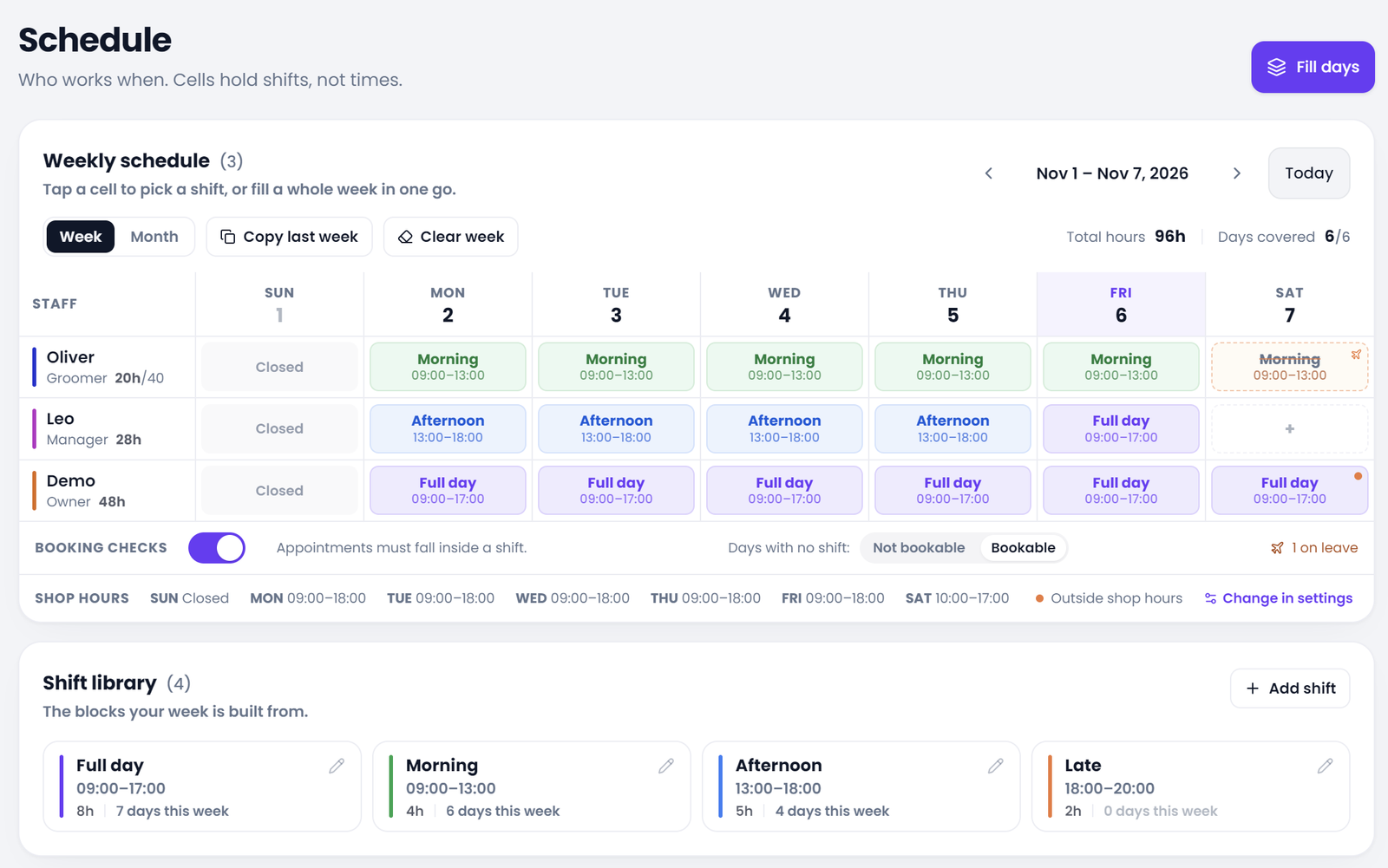
Scheduling starts with a short list of blocks the shop actually runs. Each shift has a name, a start time, an end time and a colour. A new account starts with three: Full day 09:00-18:00, Morning 09:00-13:00 and Afternoon 13:00-18:00. Rename them, add an evening block, recolor Saturdays, whatever fits. Five or six is normal.
A square on the board stores the shift's id, not a pair of times. That is the whole point of the library. Change "Morning" from 09:00-13:00 to 10:00-14:00 and every morning on every week moves with it. The edit dialog says so before you save, which is a good habit when a change reaches into future weeks. Delete a shift and the days using it fall back to unplanned instead of pointing at something that no longer exists.
Two limits shape how you design a pattern. A shift has to finish on the day it starts, so an overnight block is refused. And the board holds one shift per person per day. A morning of grooms followed by an evening reception shift is not something the grid can express yet. A shift that runs outside the shop's opening hours is allowed, though. Shops open early for a large dog and stay late for a collection, and the software does not pretend otherwise. Business hours come from System settings and are printed once under the grid, with a warning dot on any shift that reaches beyond them.
Fill the Week in One Pass (Roster Automation Shortcuts)
Nobody builds a roster one square at a time. "Fill days" asks the questions a manager actually has: what goes in, who gets it, and on which days. Pick a shift, Rest, or clear the cells; choose one person or tick the whole team; tick the weekdays; set a date range. Two shortcuts cover the usual cases, this week or through the end of the month. The range starts today rather than Monday, so a half-finished week does not get back-filled, and one save can write up to 62 days. Weekdays the shop is closed drop out on their own, so a salon shut on Sundays does not have to untick Sunday to fill October.
"Copy last week" repeats each person's weekday pattern from seven days earlier. It deliberately leaves alone any day that was blank last week, so a copy cannot wipe a one-off arrangement somebody already made this week. "Clear week" empties the visible seven days. Tapping a single square opens a picker that can apply the same choice to other days of that week in the same action.
All of these end in one write, an optimistic repaint and a rollback if the server refuses; a second tap on the same cell overwrites instead of erroring. Reading the board needs "schedule:view", moving people needs "schedule:manage", and the read-only availability endpoint needs only a login. A receptionist can see who is on without being able to rewrite the week.
Rest, Not Planned, and Closed: Three Different Blank Squares
A week grid is mostly empty squares, and empty does not mean one thing.
A blank cell means nobody has decided. It adds zero hours to that person's week. This surprises people who expected an empty square to inherit the shop's opening hours; it does not. Rest is a decision: the row exists, but it points at no shift. A cell holding a shift means the person works that window. Closed days are their own case again. They read "Closed" and cannot be picked, because the shop is shut.
Keeping "not planned" apart from "Rest" matters once Booking checks are on: the shop chooses what an unplanned day means, while a Rest day is always unbookable. It also tells a manager scanning Monday morning an unfinished plan from a day somebody was given off. The week view carries running hours beside each name and, if the shop set one, a weekly ceiling; going over it warns rather than refuses. Days with nobody rostered are flagged. The month view draws six weeks of bars, totals the month's hours and rostered person-days, and jumps back to the week when you click a day. Both views follow the shop's week-start setting.
Time Off Draws Itself onto the Grid
Time off is entered against a person with a start and end time and one of three repeat rules: once, a run of consecutive days, or every chosen weekday with an optional end date. An every-Tuesday-afternoon arrangement can run indefinitely. There is no all-day button. 00:00 to 23:59 is a whole day, and a two-hour dentist appointment in the middle of a shift is as ordinary an entry as a fortnight away. A note field carries the reason. Two overlapping leave records for the same person are refused, entries are created as approved with no request queue, and there is no edit endpoint: a wrong entry is deleted and added again.
The board draws leave over the shift instead of hiding it. Cover a whole shift and its name is struck through, with a plane icon and a dashed cell, so a square that looks like work cannot sit on a day the person is away. Cover part of it and the shift stays standing with a warning bar down its left edge and the hours shown on hover. Leave on a day with no shift still shows. The footer counts who is away that week.
Those hours come out of the totals. A 10:00-12:00 absence turns a nine-hour shift into seven; a full-day leave turns it into zero. Overlapping leave windows are merged first, so a half-day booking plus a sick note over the same two hours does not cost the shift four hours.
Leave blocks new bookings through one shared piece of code that expands the windows in the shop's local time, used by the calendar, the booking page and the confirm queue. It does this with Booking checks off as well as on. What it does not do is touch a booking that already exists. Enter leave for next Thursday after somebody has booked that Thursday and the appointment is still there. Moving it is a person's job.
Switch On Booking Checks: Strict vs. Lenient Modes
The switch is at the bottom of the schedule board, not in general settings, because the moment a merchant wants it is the moment they are staring at a gap in the week wondering whether that gap is bookable. Booking checks start off. A new account has an empty roster, and an empty roster treated as law would refuse every appointment on the first morning. The board is useful as a plan from day one; it becomes a gate when the team is ready.
Turning it on asks one question: strict or lenient. Strict means a day with no shift is not bookable. Lenient means an unplanned day stays bookable and only explicit Rest days are blocked. Both modes require a visit to fit entirely inside a rostered shift when one exists. The choice about unplanned days is kept even if the switch is later turned off, so switching back on does not quietly reset it.
With checks on, a save outside the shift window comes back with a 422 that names the groomer and the hours they work. A Rest day, or a day nobody planned under strict mode, comes back as a 409. Naming the person matters when one service carries two groomers and only one of them is unavailable.
What the Online Booking Page Does With the Roster
The customer never sees the schedule board, but they feel it. On the online booking page, opening hours are split into fifteen-minute slots and each unavailable slot carries its reason: past, on leave, not scheduled, rest day, outside the shift, or already taken. Someone choosing a groomer first sees only the people the roster says are working that day, which is a shorter list than "everybody we employ" and a more useful one. Those slots come from the same roster the salon works from. The public page and the desk calendar read one pos system for dog grooming, so there is no second set of hours to reconcile.
Requests from the web arrive as pending, with their source recorded, and wait in a confirm queue. When a batch is confirmed, each row is checked again against leave, the roster and capacity, and only the ones that have since become impossible are skipped. Twenty requests can still produce fifteen real appointments. The check at confirm time is the same one the salon calendar uses, which is the point of sharing one availability service.
The Last Check Before a Visit Is Saved: Row Locks & Capacity
A roster answers whether somebody works at ten on Tuesday. It does not answer whether ten is already taken. That is the last thing between a save and the database.
Capacity is a number on the staff record: how many pets that groomer can handle at once. It starts at one and can be raised to ten. Two overlapping visits are allowed on purpose when the shop sets it to two, because a groomer working with an assistant genuinely has two hands. Cancelled, completed and no-show visits release their seat; a pending one still holds it. The other lock is the pet. One animal cannot be booked twice over the same window. The owner is not part of that check, so two dogs from the same household can see two different groomers at the same time.
Both are re-run inside a transaction that takes row locks on the staff and pet records, then re-reads the roster and repeats the checks under the lock. Two people submitting the same Saturday slot at the same moment produce one booking and one 409. The order of the checks matters to whoever is holding the phone: service-to-staff permission, then leave, then the roster, then capacity, then the pet. "This person is away on Tuesday" is a more basic problem than "this half-hour is taken", and the form should say the first real reason instead of making the operator fix one thing and submit again.
The board does not tidy up after itself. Adding leave does not move, cancel or send a message about existing bookings. There is no waitlist, no automatic reassignment, no automatic rescheduling and no report of past conflicts. It will not generate a roster from booking volume either. What it prevents by default is the accidental kind: a visit saved against somebody who is away, outside their hours, or with no room left.
Summary & Next Steps
Yes, both halves of the question are handled on one board. Shifts, rest days and leave are planned together on the week or month view; Booking checks turn that plan into the rule for new appointments; capacity and the same-pet lock still refuse double-bookings on save, re-checked under a row lock.
A short setup order for a shop switching the feature on: define the shifts you actually run, then use Fill days or Copy last week to put the team on the board and mark Rest days. Enter known leave, including part-day absences, and set weekly hour ceilings if you use them. Decide whether an unplanned day is bookable, then switch Booking checks on. Leave everyone's capacity at one unless they genuinely work with an assistant. Work pending online requests from the confirm queue, which re-checks availability as each one becomes a real appointment.
Related questions: whether a rest day blocks online bookings, how a weekly hours cap appears on the board, what happens to an existing appointment when leave is added.
Related questions
See it on your own shop
Every module is unlocked for 7 days. Set up your services and take a real booking before you decide anything.
No credit card required · Cancel anytime